
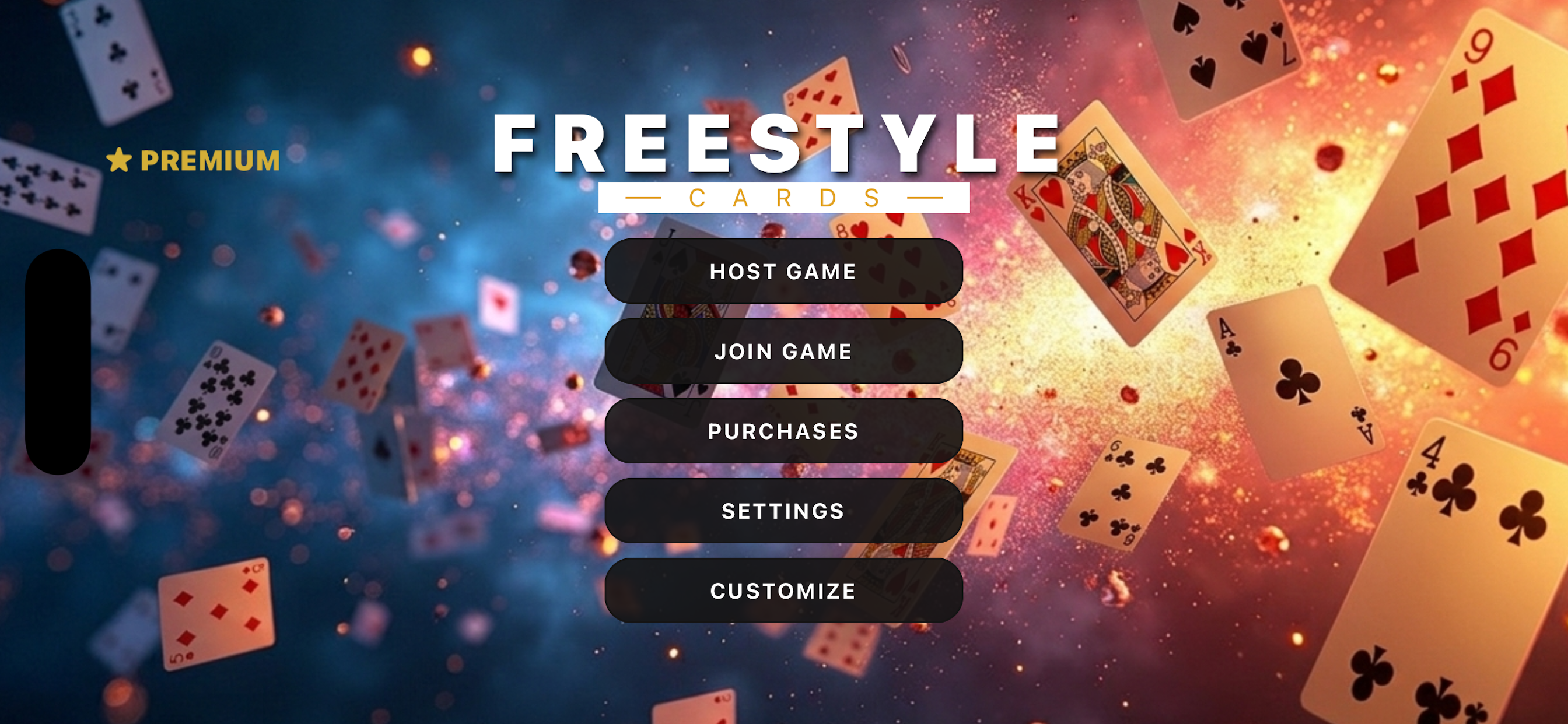
Mastering the Digital Tabletop Sandbox
Freestyle Cards gives you total control over the table. Unlike traditional digital card games with fixed mechanics, Freestyle Cards acts as a real-world deck: you dictate the dealing, hands, board state, and table rules. Here is a complete guide on how to navigate the controls and host seamless card games with your group.
1. Navigating the Control Panel
The right sidebar serves as your primary control panel during gameplay. From here, you can manage active cards, toggle game rules, send quick reactions, or leave the game session anytime.
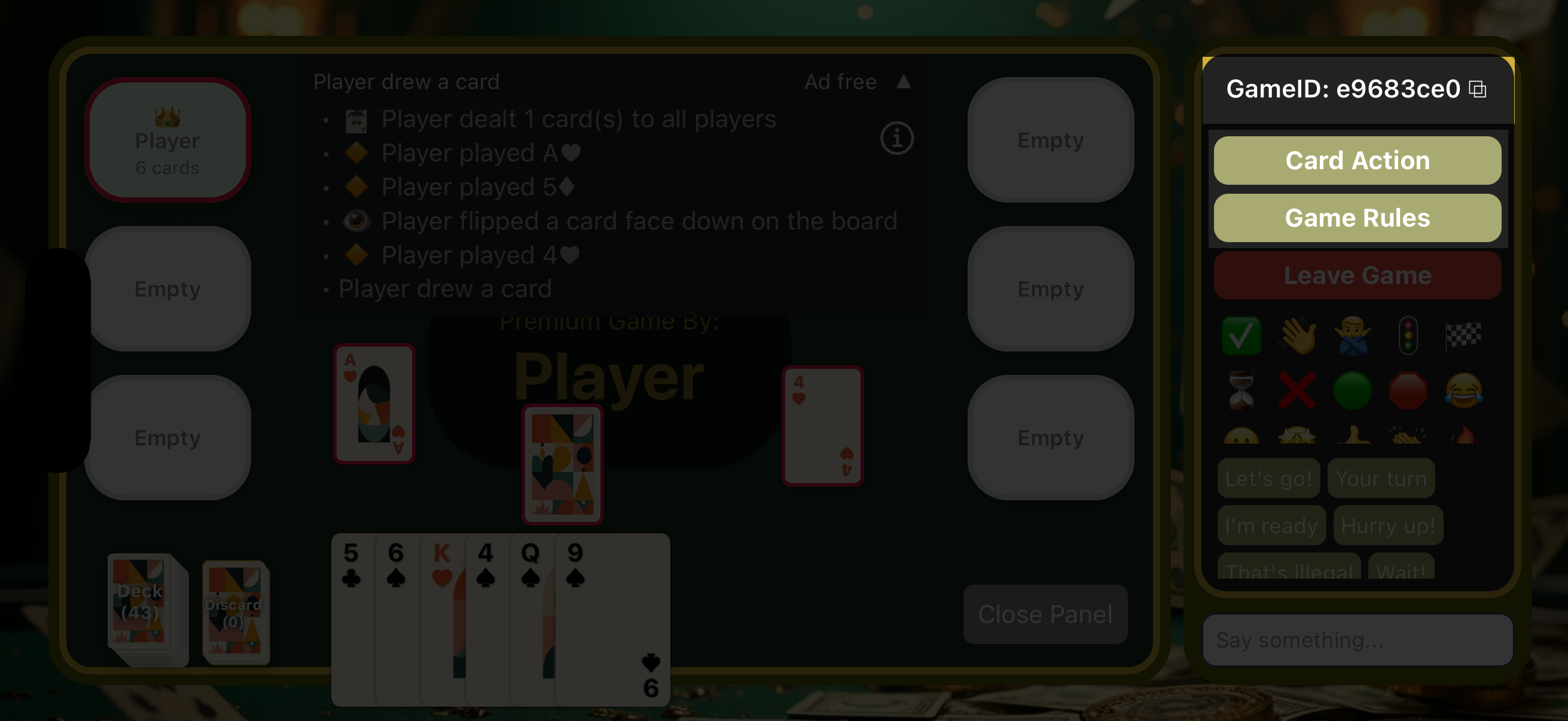
- GameID: Displays your unique room code. Tap the copy icon to share with friends so they can join instantly.
- Card Action: Opens the dealing, hand management, and board controls menu.
- Game Rules: Configures visibility modes and room rules.
2. Dealing and Card Actions
Opening the Card Action panel gives you granular control over dealing, managing your personal hand, and interacting with cards on the board.
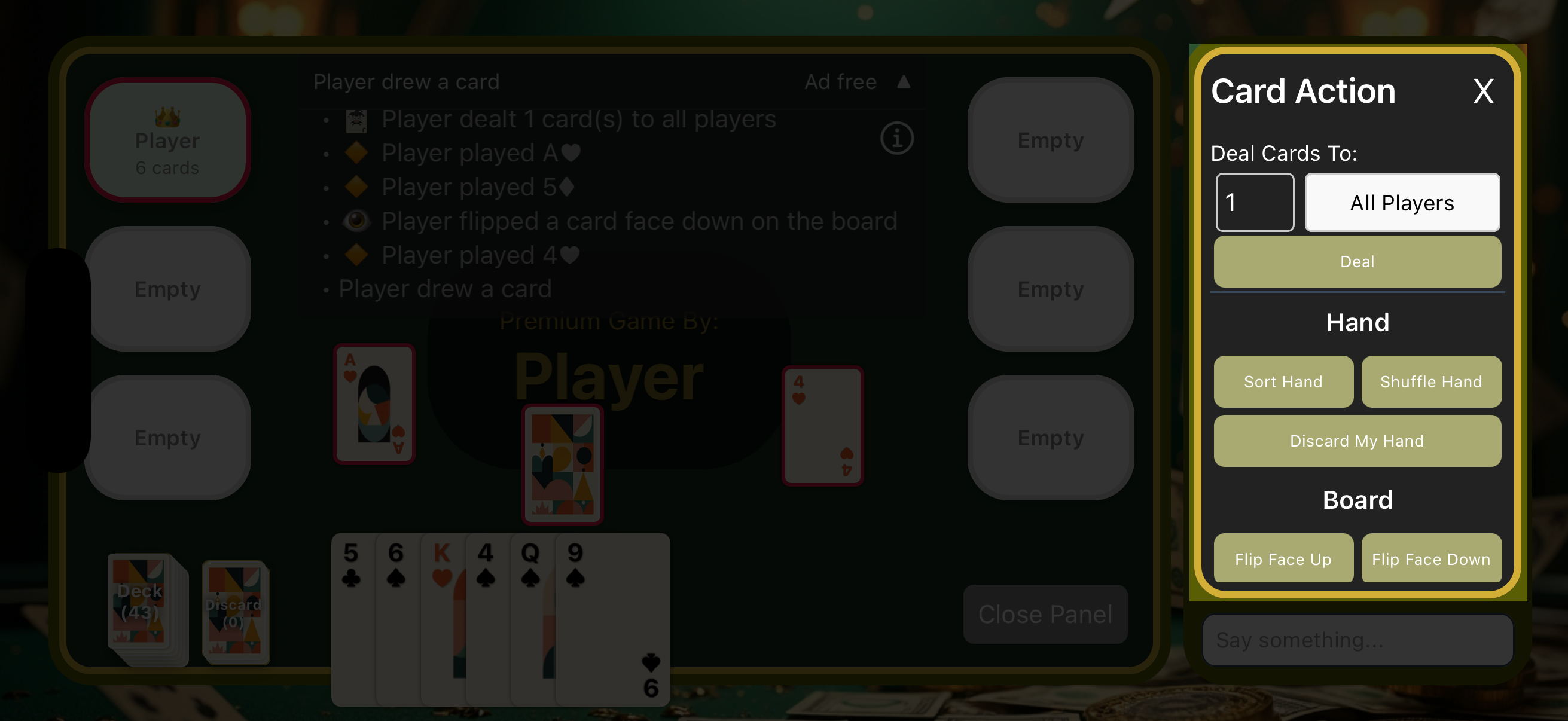
- Deal Cards: Specify the number of cards and deal directly to specific seats or choose All Players.
- Hand Management: Quickly Sort Hand, Shuffle Hand, or Discard My Hand with a single tap.
- Board Controls: Flip cards Face Up or Face Down across the central play space.
3. Setting Custom Rules & Visibility
Whether you are playing Blackjack, Poker, or a custom homebrew card game, the Game Rules menu allows you to set visibility toggles and save preset conditions.
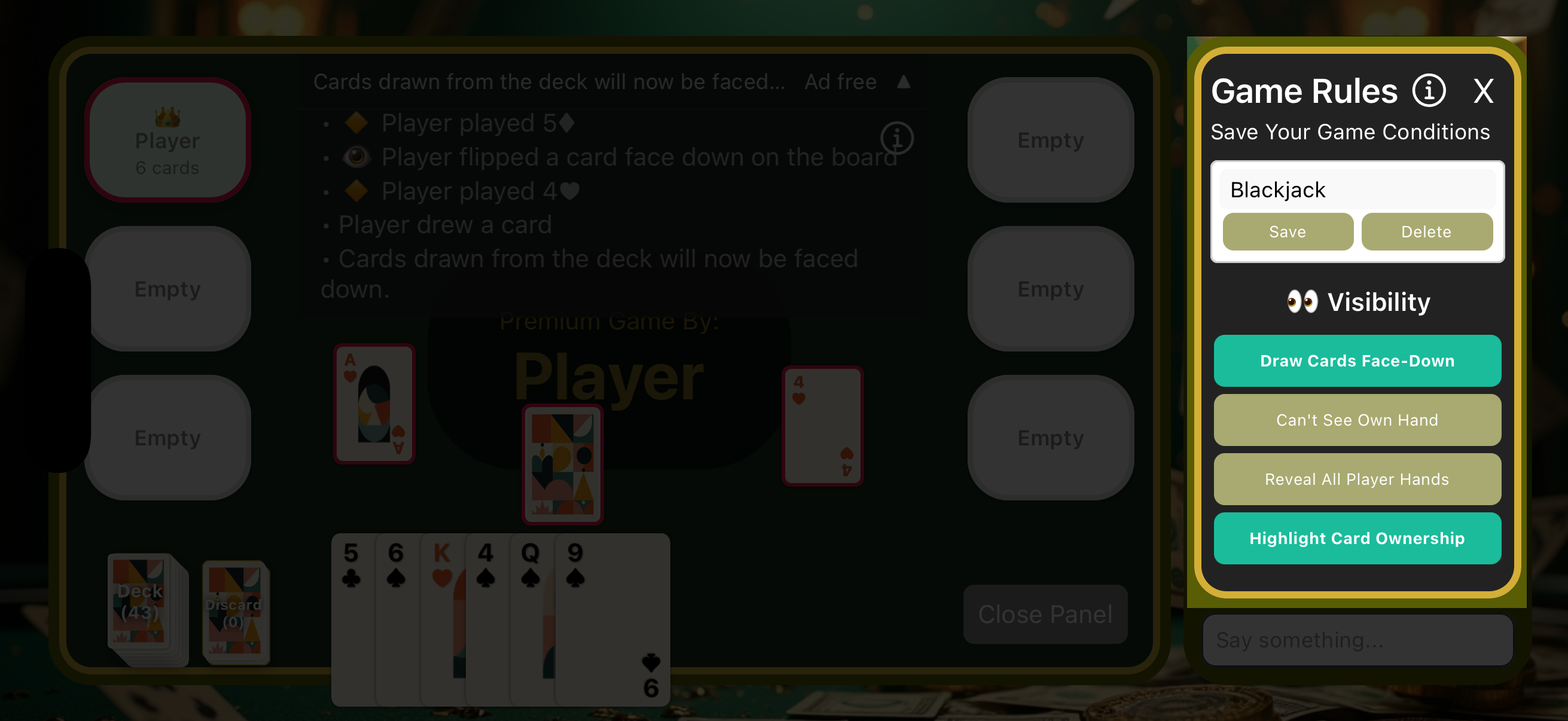
- Save Game Conditions: Type in a title (e.g., "Blackjack") and save your room presets for future sessions.
- Draw Cards Face-Down: Toggle whether drawn cards are visible to everyone or stay hidden.
- Hand Visibility: Toggle options like Can't See Own Hand (great for Blind Man's Bluff!), Reveal All Player Hands, or Highlight Card Ownership.
4. Reactions and Table Chat
Communication is key to keeping game night fun and enforcing house rules on the fly!
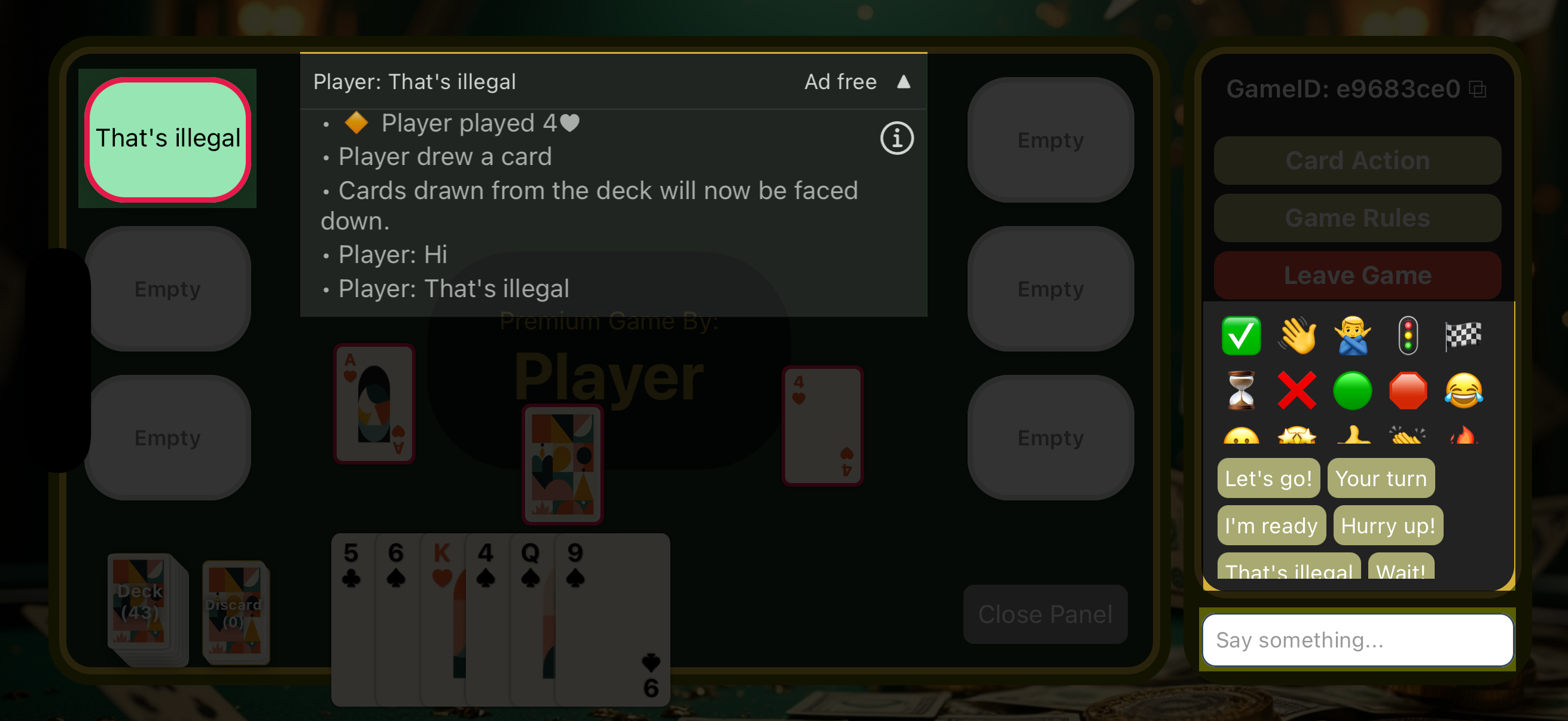
- Quick Reactions: Tap quick icons like "Let's go!", "Your turn", "Hurry up!", or call out illegal moves with "That's illegal".
- Live Banner: Selected reactions broadcast directly onto your avatar on the game board for instant feedback.
- Custom Chat: Use the input bar at the bottom to type custom messages in real time.
5. Customizing Your Table Theme
Personalize your experience before or during the match using the complete theme editor.
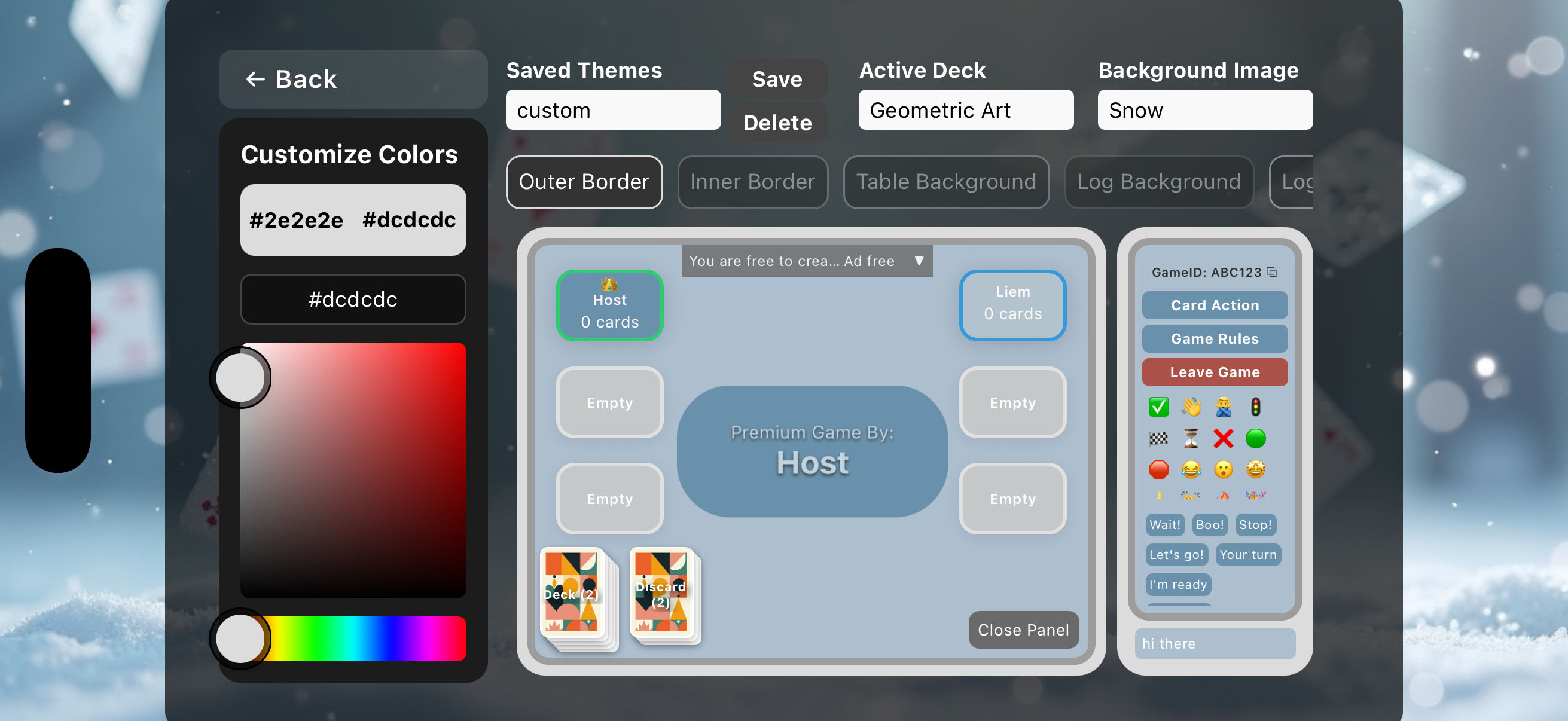
- Color Palette: Pick custom hex colors for outer borders, inner borders, table felts, and log backgrounds.
- Decks & Backgrounds: Swap active deck styles (e.g., Geometric Art) and set ambient background imagery like Snow or classic felt.
- Save Themes: Name and save your favorite visual presets to reload whenever you play.